Mehdi TmimiMobile DevelopmentMobile

Mobile Development Lab 2 of 6 · Kotlin · Compose

The same Notes app, rebuilt in Kotlin

Lab 1 built each screen: XML, then Java changed the views. Here one Kotlin function says what the screen shows, and Compose draws it again when the data changes.

Start with Part 0

At home, 30 min, before session 1: read the Kotlin sheet, then create the Compose project.

Part 0 done? Start Part 1

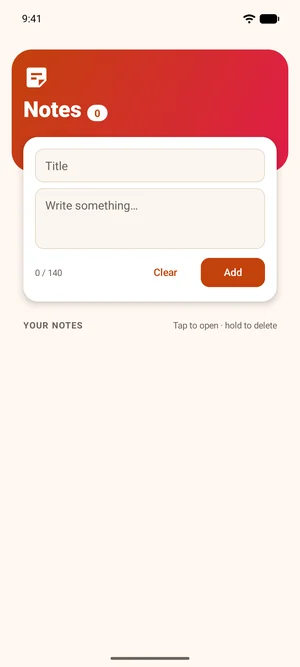
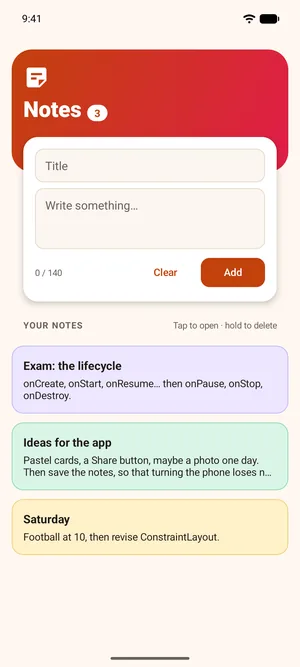
The finished notes screen in Compose: the orange-to-rose header with the count 5, the composer card, and five pastel note cards, Call Yasmine on top. The finished note page in Compose: “Ideas for the app” on a big mint sheet, with Back to notes and Share.
What you rebuild: Lab 1’s two screens, pixel for pixel, in one activity.

Built, then described

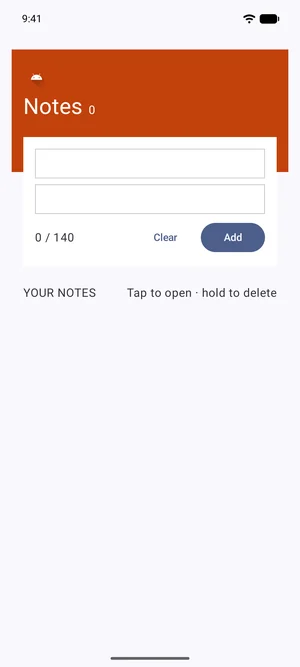
The same count, “Notes 3”, both ways. Lab 1 changed the views after each add and delete. Lab 2 writes one function that reads the list; when the list changes, Compose calls it again. Every part opens with the two ways side by side.

Lab 1 · Java changes the views

kotlin+java › com.yourname.notes › MainActivity.javaRead only
package com.yourname.notes;
import android.content.Intent;import android.os.Bundle;import android.text.Editable;import android.text.TextWatcher;import android.util.Log;import android.view.LayoutInflater;import android.view.View;import android.widget.Button;import android.widget.EditText;import android.widget.LinearLayout;import android.widget.TextView;import android.widget.Toast;
import androidx.appcompat.app.AppCompatActivity;
public class MainActivity extends AppCompatActivity {
private static final String TAG = "Lifecycle"; private static final int[] NOTE_BACKGROUNDS = { R.drawable.bg_note_butter, R.drawable.bg_note_mint, R.drawable.bg_note_lavender, R.drawable.bg_note_peach };
private TextView textCount; private TextView textEmpty; private LinearLayout notesContainer; private int notesAdded = 0;
private EditText editTitle; private EditText editBody; private TextView textError; private TextView textCounter;
private final TextWatcher formWatcher = new TextWatcher() { @Override public void beforeTextChanged(CharSequence s, int start, int count, int after) { }
@Override public void onTextChanged(CharSequence s, int start, int before, int count) { }
@Override public void afterTextChanged(Editable s) { updateForm(); } };
@Override protected void onCreate(Bundle savedInstanceState) { super.onCreate(savedInstanceState); setContentView(R.layout.activity_main); Log.d(TAG, "Main onCreate");
textCount = findViewById(R.id.textCount); textEmpty = findViewById(R.id.textEmpty); notesContainer = findViewById(R.id.notesContainer);
addNote(getString(R.string.seed_title_1), getString(R.string.seed_body_1)); addNote(getString(R.string.seed_title_2), getString(R.string.seed_body_2)); addNote(getString(R.string.seed_title_3), getString(R.string.seed_body_3)); updateCount();
editTitle = findViewById(R.id.editTitle); editBody = findViewById(R.id.editBody); textError = findViewById(R.id.textError); textCounter = findViewById(R.id.textCounter);
Button buttonAdd = findViewById(R.id.buttonAdd); buttonAdd.setOnClickListener(v -> addNoteFromComposer());
editTitle.addTextChangedListener(formWatcher); editBody.addTextChangedListener(formWatcher); }
private void updateCount() { int count = notesContainer.getChildCount(); textCount.setText(String.valueOf(count)); textEmpty.setVisibility(count == 0 ? View.VISIBLE : View.GONE); }
private void addNote(String title, String body) { View card = LayoutInflater.from(this).inflate(R.layout.item_note, notesContainer, false); TextView cardTitle = card.findViewById(R.id.textNoteTitle); TextView cardBody = card.findViewById(R.id.textNoteBody); cardTitle.setText(title); cardBody.setText(body); cardBody.setVisibility(body.isEmpty() ? View.GONE : View.VISIBLE); int background = NOTE_BACKGROUNDS[notesAdded % NOTE_BACKGROUNDS.length]; card.setBackgroundResource(background); notesAdded++;
card.setOnClickListener(v -> openNote(title, body, background)); card.setOnLongClickListener(v -> { notesContainer.removeView(card); updateCount(); Toast.makeText(this, R.string.note_deleted, Toast.LENGTH_SHORT).show(); return true; });
notesContainer.addView(card, 0); }
private void addNoteFromComposer() { String title = editTitle.getText().toString().trim(); String body = editBody.getText().toString().trim(); if (title.isEmpty()) { textError.setVisibility(View.VISIBLE); return; } textError.setVisibility(View.GONE); addNote(title, body); updateCount(); editTitle.setText(""); editBody.setText(""); Toast.makeText(this, R.string.note_added, Toast.LENGTH_SHORT).show(); }
private void updateForm() { int length = editBody.length(); textCounter.setText(getString(R.string.counter, length)); int colour = length >= 120 ? R.color.error : R.color.muted; textCounter.setTextColor(getColor(colour)); if (editTitle.length() > 0) { textError.setVisibility(View.GONE); } }
public void onClearClicked(View view) { editTitle.setText(""); editBody.setText(""); }
private void openNote(String title, String body, int background) { Intent intent = new Intent(this, NoteActivity.class); intent.putExtra(NoteActivity.EXTRA_TITLE, title); intent.putExtra(NoteActivity.EXTRA_BODY, body); intent.putExtra(NoteActivity.EXTRA_BACKGROUND, background); startActivity(intent); }
@Override protected void onStart() { super.onStart(); Log.d(TAG, "Main onStart"); }
@Override protected void onResume() { super.onResume(); Log.d(TAG, "Main onResume"); }
@Override protected void onPause() { super.onPause(); Log.d(TAG, "Main onPause"); }
@Override protected void onStop() { super.onStop(); Log.d(TAG, "Main onStop"); }
@Override protected void onRestart() { super.onRestart(); Log.d(TAG, "Main onRestart"); }
@Override protected void onDestroy() { super.onDestroy(); Log.d(TAG, "Main onDestroy"); }}

Lab 2 · the function reads the list

kotlin+java › com.yourname.notes › NotesScreen.ktRead only
package com.yourname.notes
import android.widget.Toastimport androidx.compose.foundation.Imageimport androidx.compose.foundation.backgroundimport androidx.compose.foundation.borderimport androidx.compose.foundation.combinedClickableimport androidx.compose.foundation.layout.Boximport androidx.compose.foundation.layout.Columnimport androidx.compose.foundation.layout.PaddingValuesimport androidx.compose.foundation.layout.Rowimport androidx.compose.foundation.layout.fillMaxSizeimport androidx.compose.foundation.layout.fillMaxWidthimport androidx.compose.foundation.layout.heightimport androidx.compose.foundation.layout.paddingimport androidx.compose.foundation.layout.sizeimport androidx.compose.foundation.layout.widthimport androidx.compose.foundation.lazy.LazyColumnimport androidx.compose.foundation.lazy.itemsimport androidx.compose.foundation.shape.RoundedCornerShapeimport androidx.compose.foundation.text.BasicTextFieldimport androidx.compose.foundation.text.KeyboardOptionsimport androidx.compose.material3.Buttonimport androidx.compose.material3.MaterialThemeimport androidx.compose.material3.Textimport androidx.compose.material3.TextButtonimport androidx.compose.runtime.Composableimport androidx.compose.runtime.getValueimport androidx.compose.runtime.keyimport androidx.compose.runtime.mutableIntStateOfimport androidx.compose.runtime.mutableStateOfimport androidx.compose.runtime.rememberimport androidx.compose.runtime.setValueimport androidx.compose.runtime.toMutableStateListimport androidx.compose.ui.Alignmentimport androidx.compose.ui.Modifierimport androidx.compose.ui.draw.clipimport androidx.compose.ui.draw.shadowimport androidx.compose.ui.graphics.Brushimport androidx.compose.ui.graphics.SolidColorimport androidx.compose.ui.platform.LocalContextimport androidx.compose.ui.res.painterResourceimport androidx.compose.ui.text.font.FontWeightimport androidx.compose.ui.text.input.ImeActionimport androidx.compose.ui.text.input.KeyboardCapitalizationimport androidx.compose.ui.text.style.TextAlignimport androidx.compose.ui.text.style.TextOverflowimport androidx.compose.ui.tooling.preview.Previewimport androidx.compose.ui.unit.dpimport androidx.compose.ui.unit.emimport androidx.compose.ui.unit.spimport com.yourname.notes.ui.theme.Brandimport com.yourname.notes.ui.theme.CardWhiteimport com.yourname.notes.ui.theme.ErrorRedimport com.yourname.notes.ui.theme.Fieldimport com.yourname.notes.ui.theme.HeaderEndimport com.yourname.notes.ui.theme.Inkimport com.yourname.notes.ui.theme.Lineimport com.yourname.notes.ui.theme.Mutedimport com.yourname.notes.ui.theme.NoteButterimport com.yourname.notes.ui.theme.NoteButterLineimport com.yourname.notes.ui.theme.NoteLavenderimport com.yourname.notes.ui.theme.NoteLavenderLineimport com.yourname.notes.ui.theme.NoteMintimport com.yourname.notes.ui.theme.NoteMintLineimport com.yourname.notes.ui.theme.NotePeachimport com.yourname.notes.ui.theme.NotePeachLineimport com.yourname.notes.ui.theme.NotesThemeimport com.yourname.notes.ui.theme.OnBrand
// One note: what the screen draws a card fromdata class Note(val title: String, val body: String, val colour: Int)
// The four pastels, in creation order: butter, mint, lavender, peachval NoteFills = listOf(NoteButter, NoteMint, NoteLavender, NotePeach)val NoteLines = listOf(NoteButterLine, NoteMintLine, NoteLavenderLine, NotePeachLine)
// Lab 1's three seed notes, newest first (colours 2, 1, 0: lavender, mint, butter)val SeedNotes = listOf( Note("Exam: the lifecycle", "onCreate, onStart, onResume… then onPause, onStop, onDestroy.", 2), Note( "Ideas for the app", "Pastel cards, a Share button, maybe a photo one day. Then save the notes, so that turning the phone loses nothing.", 1 ), Note("Saturday", "Football at 10, then revise ConstraintLayout.", 0))
@Composablefun NotesScreen(modifier: Modifier = Modifier) { val context = LocalContext.current val notes = remember { SeedNotes.toMutableStateList() } var added by remember { mutableIntStateOf(3) } // the seeds used colours 0, 1, 2 var title by remember { mutableStateOf("") } var body by remember { mutableStateOf("") } var showError by remember { mutableStateOf(false) }
Column(modifier = modifier.fillMaxSize()) { Box { // The header: a gradient with round corners Column( modifier = Modifier .padding(16.dp) .fillMaxWidth() .height(168.dp) .clip(RoundedCornerShape(28.dp)) .background(Brush.linearGradient(listOf(Brand, HeaderEnd))) .padding(start = 16.dp, top = 20.dp) ) { Image( painter = painterResource(R.drawable.ic_notes), contentDescription = "Notes logo", modifier = Modifier.size(36.dp) ) Row(modifier = Modifier.padding(top = 4.dp)) { Text( text = "Notes", color = OnBrand, fontSize = 30.sp, fontWeight = FontWeight.Black, modifier = Modifier.alignByBaseline() ) Text( text = "${notes.size}", color = Brand, fontSize = 14.sp, fontWeight = FontWeight.Bold, modifier = Modifier .padding(start = 8.dp) .alignByBaseline() .background(CardWhite, RoundedCornerShape(12.dp)) .padding(horizontal = 10.dp, vertical = 2.dp) ) } }
// The composer: a white card that overlaps the header Column( modifier = Modifier .padding(start = 32.dp, top = 136.dp, end = 32.dp) .fillMaxWidth() .shadow(6.dp, RoundedCornerShape(20.dp)) .background(CardWhite) .padding(16.dp) ) { NotesField( value = title, onValueChange = { title = it if (it.isNotEmpty()) showError = false }, hint = "Title", singleLine = true ) NotesField( value = body, onValueChange = { body = it.take(140) }, // input stops at 140, as Lab 1's maxLength hint = "Write something…", minLines = 3, modifier = Modifier.padding(top = 8.dp) ) if (showError) { Text( text = "Give your note a title first.", color = ErrorRed, fontSize = 14.sp, modifier = Modifier.padding(top = 8.dp) ) } Row( modifier = Modifier.padding(top = 8.dp), verticalAlignment = Alignment.CenterVertically ) { Text( text = "${body.length} / 140", color = if (body.length >= 120) ErrorRed else Muted, fontSize = 12.sp, modifier = Modifier.weight(1f) ) TextButton( onClick = { title = "" body = "" }, modifier = Modifier.width(88.dp) ) { Text("Clear") } Button( onClick = { if (title.isBlank()) { showError = true } else { notes.add(0, Note(title.trim(), body.trim(), added % 4)) added++ title = "" body = "" showError = false Toast.makeText(context, "Note added", Toast.LENGTH_SHORT).show() } }, shape = RoundedCornerShape(12.dp), modifier = Modifier .padding(start = 4.dp) .width(88.dp) ) { Text("Add") } } } }
// The list's title, and its hint on the right Row(modifier = Modifier.padding(start = 32.dp, top = 24.dp, end = 32.dp)) { Text( text = "YOUR NOTES", color = Muted, fontSize = 12.sp, fontWeight = FontWeight.Bold, letterSpacing = 0.1.em, modifier = Modifier.alignByBaseline() ) Text( text = "Tap to open · hold to delete", color = Muted, fontSize = 12.sp, textAlign = TextAlign.End, modifier = Modifier .padding(start = 16.dp) .weight(1f) .alignByBaseline() ) }
if (notes.isEmpty()) { Text( text = "No notes yet.\nWrite your first one above.", color = Muted, fontSize = 16.sp, textAlign = TextAlign.Center, modifier = Modifier .align(Alignment.CenterHorizontally) .padding(top = 56.dp) ) }
// The cards, newest on top; only those that fit are drawn LazyColumn( modifier = Modifier .weight(1f) .padding(top = 8.dp), contentPadding = PaddingValues(start = 16.dp, end = 16.dp, bottom = 16.dp) ) { items(notes) { note -> key(note) { // this card belongs to this note: the card below does not inherit its pressed look NoteCard( note = note, onLongClick = { notes.remove(note) Toast.makeText(context, "Note deleted", Toast.LENGTH_SHORT).show() } ) } } } }}
// Lab 1's style NotesField, as a function: the same look for both text fields@Composablefun NotesField( value: String, onValueChange: (String) -> Unit, hint: String, modifier: Modifier = Modifier, singleLine: Boolean = false, minLines: Int = 1) { BasicTextField( value = value, onValueChange = onValueChange, modifier = modifier .fillMaxWidth() .background(Field, RoundedCornerShape(12.dp)) .border(1.dp, Line, RoundedCornerShape(12.dp)) .padding(horizontal = 14.dp, vertical = 12.dp), textStyle = MaterialTheme.typography.bodyLarge.copy(color = Ink), singleLine = singleLine, minLines = minLines, keyboardOptions = KeyboardOptions( capitalization = KeyboardCapitalization.Sentences, imeAction = if (singleLine) ImeAction.Next else ImeAction.Default ), cursorBrush = SolidColor(Brand), decorationBox = { innerTextField -> Box { if (value.isEmpty()) { Text(text = hint, color = Muted) } innerTextField() } } )}
// One card: hold it to delete it@Composablefun NoteCard(note: Note, onLongClick: () -> Unit) { Column( modifier = Modifier .padding(top = 12.dp) .fillMaxWidth() .clip(RoundedCornerShape(16.dp)) .background(NoteFills[note.colour]) .border(1.dp, NoteLines[note.colour], RoundedCornerShape(16.dp)) .combinedClickable(onClick = { }, onLongClick = onLongClick) .padding(16.dp) ) { Text( text = note.title, color = Ink, fontSize = 16.sp, fontWeight = FontWeight.Bold ) if (note.body.isNotEmpty()) { Text( text = note.body, color = Ink, fontSize = 14.sp, maxLines = 2, overflow = TextOverflow.Ellipsis, modifier = Modifier.padding(top = 4.dp) ) } }}
@Preview(showBackground = true)@Composablefun NoteCardPreview() { NotesTheme { NoteCard(note = SeedNotes[1], onLongClick = { }) }}
@Preview(showBackground = true)@Composablefun NotesScreenPreview() { NotesTheme { NotesScreen() }}

No findViewById, no setText, no GONE: the screen is a function of the data. You call updateCount() three times in Lab 1; in Lab 2, nobody does.

Eight parts, one app

One goal and one visible result per part, each beside Lab 1’s. Behind? Open the next part: it starts with a catch-up.

At home, before the first session

Part 0 · 30 min

You do not know Kotlin yet: a ten-minute sheet is enough to read the code of this lab. Read it first, then create the project.

  1. Read this first

    Read Kotlin in ten minutes

    Ten cards, each a Kotlin line beside the Java you know. Keep it open beside Android Studio in class.

    1. ·No ; at the end of a line, no new
    2. ·The type after the name: title: String
    3. ·{ } after a call: its last argument is a function (card 8)

    10 min

  1. Part 0

    Before class: read Kotlin, create the project

    I can read Kotlin beside Java, and create and run the Compose project.

    1. 0.1Read the Kotlin sheet
    2. 0.2Start a project with Empty Activity
    3. 0.3Fill in the form, keep Lab 1’s package
    4. 0.4Run it once

    30 min, home

Other versions, older tutorials? 1 min
  • Tested with Android Studio Rabbit 2 (2026.2.2) and the Android 17 emulator (API 37), November 2026.
  • The lab is built on the versions the wizard writes: AGP 9.5.2, Kotlin 2.2.10, Compose BOM 2026.02.01. Accept no version update.
  • Old tutorials say “Empty Compose Activity”. In Rabbit 2, Empty Activity is the Compose template, and Empty Views Activity the XML one.
  • AGP 9 builds Kotlin itself: the project has no org.jetbrains.kotlin.android plugin line, unlike older projects.
  • Navigation Compose now receives only critical fixes. It still works, and it is what Android’s guide recommends for a Compose app. Navigation 3 is the new library: see Go further.
  • From Compose 1.13, BasicTextField(value, onValueChange) is deprecated in favour of BasicTextField(state). This lab uses 1.10: nothing is struck through. See Go further.

When Part 0 is done

Without JavaScript, the code says com.yourname.notes: replace yourname by the name you chose.

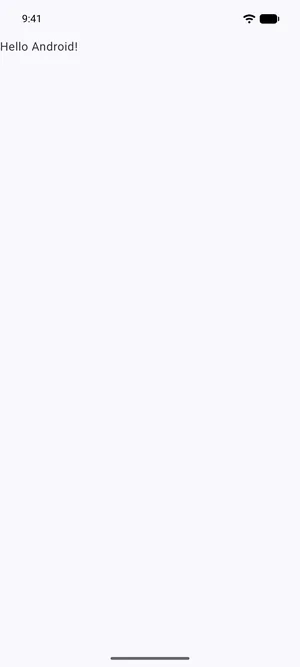
In class: NotesCompose opens, and “Hello Android!” runs on the phone, in place of Lab 1’s Notes.

That’s all for tonight.

Session 1: describe the screen

In class · Parts 1–4 · about 2 h

You leave with the styled notes screen and its three seed cards, drawn from a list.

  1. Part 1

    A screen is a function

    I can find the screen in a function, and preview it without the phone.

    13 min

  2. Part 2

    Place the pieces: Column, Row, Box

    I can place the screen’s pieces with three containers and the Modifier.

    32 min

  3. Part 3

    Make it beautiful: the theme and the Modifier

    I can give the app Lab 1’s colours with a theme, and paint a box link by link.

    28 min

  4. Part 4

    The screen drawn from data

    I can draw a list of cards from a list of notes.

    18 min

Session 2: the screen answers

In class · Parts 5–7 · about 2 h

You leave with the finished app: typing, adding, holding to delete, and the note page.

  1. Part 5

    The screen answers: state and events

    I can make the screen react to typing, taps and long presses.

    42 min

  2. Part 6

    The activity’s life, and what Compose keeps

    I can tell a recomposition from a recreation, and keep typed text across a rotation.

    15 min

  3. Part 7

    A second screen: Navigation Compose

    I can open a second screen in the same activity, and share a note.

    27 min

In every part

Where you work

  1. Android Studio You write Kotlin in kotlin+java, and a few lines of res/.
  2. Preview Draws a composable function without the phone (Part 1).
  3. The emulator Runs the same Notes as Lab 1, under the same package.
  4. Logcat Shows when the activity starts, and when a function draws again (Part 6).
Amber: your code. Sky: the system and the phone. Each step names its places before you act.
  • Type the short lines that carry an idea: a container, a state, a route. Android Studio’s completion helps (Ctrl+Space); no AI assistant.
  • Paste the long pieces, with the Copy button of the code panel. Each panel starts with its imports: paste them first.

Quick check

Six questions on the whole lab, at the end of session 2. Answer, then see why.

Which line does Lab 2’s MainActivity use instead of setContentView(R.layout.activity_main)?

See the answer

setContent hands the activity a composable function: there is no layout file to inflate. @Preview only draws a function in the IDE (Part 1).

In Modifier.padding(16.dp).background(Brand), where is the 16 dp of space?

See the answer

The links apply in order. A padding before background is a margin; after it, a padding (Part 2).

Since Part 2, Title refuses your letters. Why?

See the answer

The field draws the value it is given. onValueChange = { title = it } stores your letter in a state; the state changes, and Compose draws the field again (Part 5).

You type one letter in Title. What runs again?

See the answer

Logcat shows one “NotesScreen draws” per letter, and no “Main onCreate”. A recomposition is not a recreation (Part 6).

After a rotation, your half-typed title is still there, but the notes you added are gone. Why?

See the answer

A rotation recreates the activity. What remember kept starts again from the seeds; rememberSaveable keeps the title, as Lab 1’s EditText did. Keeping the notes is the next milestone (chapters 03 and 09).

You tap a card and the note page opens. What happened to the activity?

See the answer

One activity, two routes: navigate("note/$index") carries only the position, and both screens read the same list. The manifest does not change, and Logcat stays silent (Part 7).

Go further

After Part 7: for fast students in class, and for home. Three challenges, no steps: pick one.

The app speaks French

A challenge

Lab 2’s texts are English literals. Move them to res/values/strings.xml (Lab 1’s names: note_added, counter…), read each with stringResource(R.string.…), then add values-fr, as in Lab 1’s challenge “The app speaks French”. Two traps: inside onClick, stringResource is not allowed (it is @Composable): use context.getString(R.string.note_added), the same in onLongClick for note_deleted. The counter takes its number: stringResource(R.string.counter, body.length). The seeds sit outside functions: build them in NotesApp with context.getString(…).

A field that holds its own text

A challenge

Newer Compose replaces value and onValueChange with BasicTextField(state = rememberTextFieldState()). Rewrite NotesField that way, and the two states that feed it: the screen must look exactly the same. Look up clearText() and InputTransformation.maxLength(140).

Navigation 3

A challenge

In Navigation 3, the back stack is a list you own, and NavDisplay shows its last entry. Rebuild Part 7’s two screens with it: a key for the list, a key that holds the note’s position, the same Back. Add the androidx.navigation3 libraries at home: they download.

For the teacher The two sessions 1 min
  • Session 1, 91 min of steps. Open with the finished app, live, beside Lab 1’s (5 min). Parts 1 and 2, then sync point A (Lab 2’s own skeleton); a break; Part 3, sync point B (the styled screen, beside Lab 1’s); Part 4, sync point C (three cards).
  • Session 2, 84 min of steps. Part 5, sync point D (the input table); a break; Part 6; Part 7, then the quick check.
  • A beginner takes about 1.3 times the step minutes: about 2 h of work per session. A student who is behind starts the next part from its catch-up.
  • Running late? Skip the optional “Now you” boxes: Part 3’s palette, Part 7’s double tap. Still late? Let students paste a long step from its Stuck? fold instead of typing it. Never skip Part 5’s input table or Part 7’s Share.